Experiment Workflow Automation
In the Automation tutorial, we introduced the LabOne Q Automation framework and showed how it can be used to automate a wide variety of experiment suites. In particular, we explained how we can write our own automation subclasses to customize the automation framework and automate arbitrary Python routines.
In the LabOne Q Applications Library, we use experiment workflows to standardize and structure our experiments. For this case, we have already written the automation subclasses, so that you do not have to. In this tutorial, we will explain how this works to automate a suite of experiment workflows.
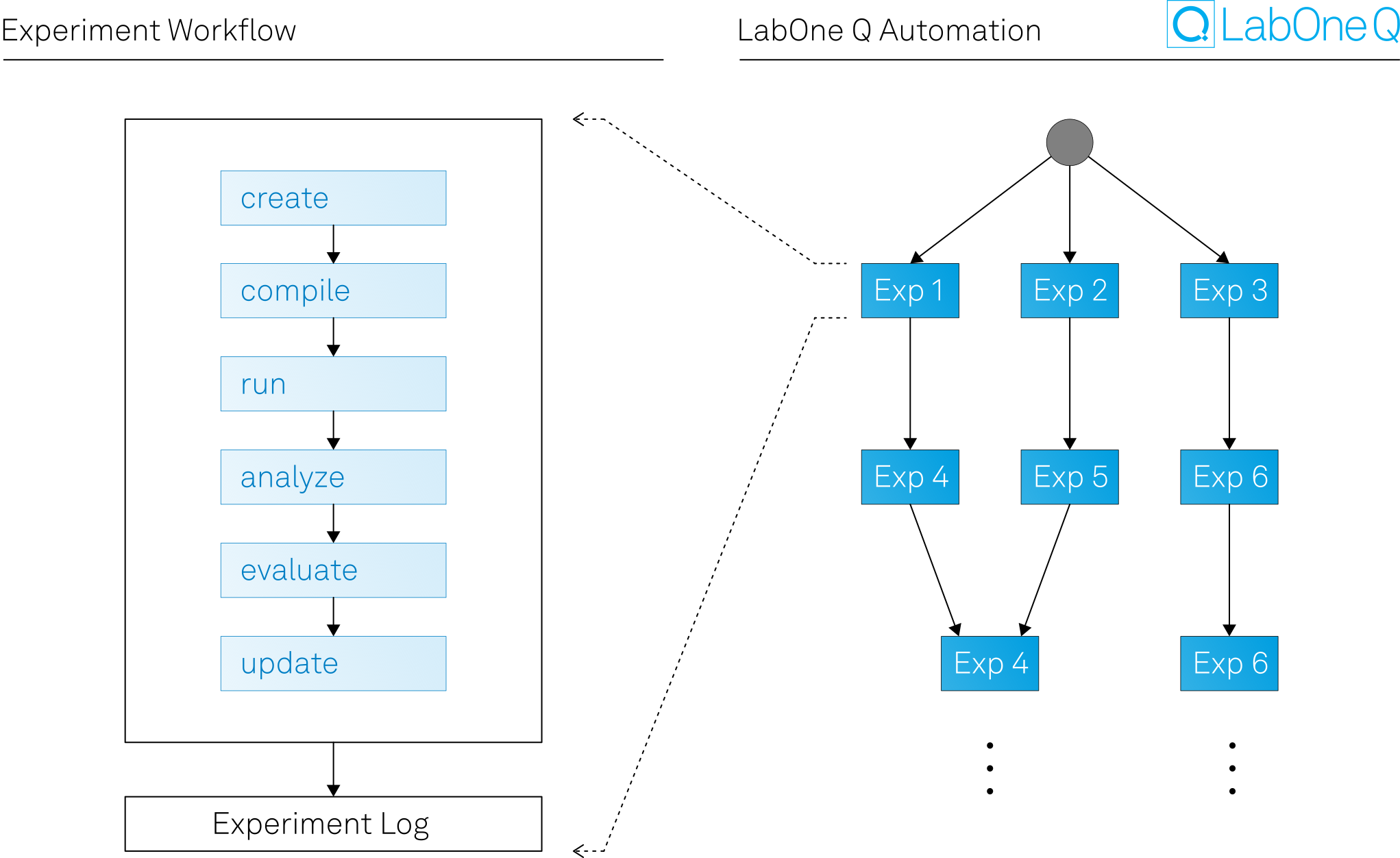
Aim
The goal of experiment workflow automation is to automate the tedious human intervention involved when running an experiment suite, such as single-qubit tune-up. Experiment workflows are the building blocks that partially automate this process by creating, compiling, and running the experiment, analyzing the results, and updating the QPU if necessary. The remaining human step is to evaluate the analysis of the results and make decisions, such as assessing whether the experiment was successful, which parameters to update, and which experiment to run next. This step is captured by the experiment workflow evaluate task together with the automation framework.
Subpackage structure
In order to work with experiment workflows, we define the subclasses WorkflowAutomation, WorkflowLayer, and WorkflowNode in the automation.workflow directory. To help keep the logic subclasses organized, we also define the WorkflowLogic class in the same directory. The standard set of evaluation tasks are defined in the tasks.evaluation file. However, we may write workflow automation specific evaluation tasks also in this directory. The user is, of course, free to create other directories in the automation subpackage in their own copy of the Applications Library to define their own custom subclasses using ours as a template.
Example problem
In order to explain experiment workflow automation in more concrete terms, let us look at a simple example.
Consider an experiment suite consisting of a qubit spectroscopy experiment on four qubits. For each set of experiments, we define an experiment as successful if the $r^2$ value of the results fit is above a certain threshold. If a set of experiments is successful, we move on and repeat this three times. Once all experiments are successful, the experiment suite has passed.
Imports
import numpy as np
from laboneq.automation.logic import FixedParameterUpdate
from laboneq.automation.serialization import load_automation_parameters_from_file
from laboneq.automation.web_viewer import start_web_viewer
from laboneq.simple import *

from laboneq_applications.automation import WorkflowAutomation, WorkflowLayer
from laboneq_applications.automation.workflow.logic import AdaptFrequencyRange
from laboneq_applications.experiments import qubit_spectroscopy
from laboneq_applications.qpu_types.tunable_transmon import demo_platform
Setting up the quantum platform
In order to initialize a WorkflowAutomation instance, there are two additional arguments to be aware of. There is a compulsory argument session, which is the LabOne Q Session object, and an optional argument qpu, which is the QPU object. If the qpu argument is passed to the WorkflowAutomation, then this QPU is used by default throughout the automation graph. If the qpu argument is not set, then a QPU needs to be passed directly to each layer.
For this example, let us set up a demo session and QPU containing six tunable transmon qubits. The UIDs for the qubits are: q0, q1, q2, q3, q4, q5.
qt_platform = demo_platform(n_qubits=6)
setup = qt_platform.setup
qpu = qt_platform.qpu
qubits = qpu.quantum_elements
session = Session(setup)
session.connect(do_emulation=True)
Creating the folder store
Since we will be running experiment workflows, we can enable the folder store to store the experiment output. Experiment workflows run as part of an automation will have their output structured in a nested directory tree, designed to make viewing automation output easier.
from pathlib import Path

folder_store = workflow.logbook.FolderStore(Path.cwd())
We disable saving in this tutorial. To enable it, simply run folder_store.activate().
folder_store.deactivate()
Constructing the workflow automation parameters
As in the Automation tutorial, we have the option of either setting initial automation parameters when initializing the automation, or passing all of the necessary parameters to the layers individually. The parameters property on the automation object displays the layer parameters for each added layer.
The workflow automation parameters dictionary has the following structure:
- The primary key must be the layer key (as for the automation parameters dictionary in the
Automationbase class). - The secondary key must be the parameters type, i.e., one of:
workflow_parameters- The primary key of this subdictionary is the node key. Parameters that are not "per-quantum-element" go under the special primary key__common__.evaluation_parameterstemporary_parametersoptions
Here is an example of how this looks in yaml format:
amplitude_fine_layer:
    workflow_parameters:
        q0:
            repetitions: [1, 2, 3, 4]
        q1:
            repetitions: [1, 2, 3, 4]
        __common__:
            amplification_qop: x180
            target_angle: 1.0
            phase_offset: 0.0
    evaluation_parameters:
        fit_r2_thresholds:
            q0: 0.9
            q1: 0.91
    temporary_parameters:
        q0:
            readout_resonator_frequency: 7e9
    options:
        evaluate: True
        update: True
We recommend setting workflow automation parameters when initializing the WorkflowAutomation. When there are many parameters, it may be easier to store them in a yaml file and convert them to a dictionary using the automation.serializtion.load_automation_parameters_from_file function, as shown in the Automation tutorial.
At the beginning, we do not know exactly what parameters we should use but we can pass in at least the right structure with some rough initial values as a starting point. We know that we are expecting three layers, which we can call qs1, qs2, qs3, and we know that we are only interested in the first four qubits, q0, q1, q2, q3. We also know that we will be using the qubit spectroscopy experiment workflow, which takes an array of frequencies per qubit, and we will need the evaluate and update options set to fully benefit from the automation framework.
auto_params = {}
for layer_key in ["qs1", "qs2", "qs3"]:
    auto_params[layer_key] = {"workflow_parameters": {}}
    for q in qubits[:4]:
        auto_params[layer_key]["workflow_parameters"][q.uid] = {
            "frequencies": np.linspace(6.1e9, 6.6e9, 101)
        }
    auto_params[layer_key]["options"] = {
        "evaluate": True,
        "update": True,
        "count": 2048,
        "active_reset": True,
    }
Equivalently, we could load the parameters from a yaml file, as shown below.
auto_params = load_automation_parameters_from_file("initial_parameters.yml")
Constructing the automation graph
We are now ready to initialize our workflow automation object.
auto = WorkflowAutomation(session, qpu, name="example", parameters=auto_params)
We can also define our workflow layers and add them to the automation. In this case, the function of the workflow layer will be our workflow builder.
qs1 = WorkflowLayer(
    qubit_spectroscopy.experiment_workflow,
    ["q0", "q1", "q2", "q3"],
    key="qs1",
    depends_on={"root"},
)
auto.add_layer(qs1)
qs2 = WorkflowLayer(
    qubit_spectroscopy.experiment_workflow,
    ["q0", "q1", "q2", "q3"],
    key="qs2",
    depends_on={"qs1"},
)
auto.add_layer(qs2)
qs3 = WorkflowLayer(
    qubit_spectroscopy.experiment_workflow,
    ["q0", "q1", "q2", "q3"],
    key="qs3",
    depends_on={"qs2"},
)
auto.add_layer(qs3)
Viewing the automation graph
In this tutorial, we will view the automation graph interactively using the web viewer.
start_web_viewer(auto)
Accessing the automation graph
In addition to the access options outlined in the Automation tutorial, WorkflowAutomation has a number of additional features to improve ease-of-use.
One customization is the granular access to workflow automation parameters. Apart from viewing layer automation parameters all at once, the WorkflowLayer also has the following attributes to get/set/delete part of the parameters dictionary:
workflow_parameters(element + common workflow parameters)element_workflow_parameters(workflow parameters that are per quantum element),common_workflow_parameters(workflow parameters that apply to all quantum elements)evaluation_parameterstemporary_parametersoptions
Another customization is aliases to generic base class names. For example, on the WorkflowLayer class we have the following aliases from AutomationLayer:
function<->workflow_buildernode_keys<->quantum_elementsresults<->workflow_results
We can demonstrate how some of these look below.
auto["qs1"].workflow_parameters
auto["qs1"].workflow_builder
Running the automation graph
We are now ready to run the automation graph.
auto.run()
We can see that the entire automation graph passed.
If running with an activated folder store, notice also how the workflow output has been saved in the folder store. Previously, with workflows, we had a date folder {date} with {timestamp}-{workflow_name} subfolders. If a workflow is run as part of an automation, however, we now have the directory structure {date}/{automation_timestamp}-{automation_name}/{layer_key}/{timestamp}-{workflow_name}/. Moreover, if a layer is run sequentially, or a layer is run explicitly using run_layer with the node_keys argument, then the directory structure is {date}/{automation_timestamp}-{automation_name}/{layer_key}/{node_keys}/{timestamp}-{workflow_name}/. This provides easier access to the workflow results and plots.
Let us take a closer look at what happened when we ran the automation. We can see that the qubit_spectroscopy has an evaluation task and that this evaluation task uses the standard task evaluate_parameter_and_fit_r2_thresholds. As a reminder, this task declares success when the $r^2$ value of the fit is above a certain threshold, and update when the change in a parameter is above a certain threshold. Since we did not set any evaluation parameters, we are using the default thresholds set in the evaluation task. We can check these below.
auto["qs1"].workflow_results[("q0", "q1", "q2", "q3")].tasks["evaluate_experiment"].src
We can see that our fit_r2_threshold is 0.99. Let us check what $r^2$ value we actually got for this layer, for one of the qubits (since they are all identical):
auto["qs1"].workflow_results[("q0", "q1", "q2", "q3")].tasks["analysis_workflow"].tasks[
    "fit_data"
].output["q0"]
From the fit data, we can see that we have an $r^2$ value of 0.99911648 > 0.99 and so our experiment is a success. Let us confirm that the experiment was indeed marked as a success.
auto["qs1"].workflow_results[("q0", "q1", "q2", "q3")].tasks[
    "evaluate_experiment"
].output["q0"]
The default parameter (resonance_frequency_ge) and parameter_threshold (2e8) for qubit_spectroscopy determine the update flag. In this case it is false, which means that resonance_frequency_ge changed by less than 2e8. Let us confirm that this is the case:
print(
    "Old value = ",
    auto["qs1"]
    .workflow_results[("q0", "q1", "q2", "q3")]
    .tasks["analysis_workflow"]
    .output["old_parameter_values"]["q0"],
)
print(
    "New value = ",
    auto["qs1"]
    .workflow_results[("q0", "q1", "q2", "q3")]
    .tasks["analysis_workflow"]
    .output["new_parameter_values"]["q0"],
)
Since this is only a minor change in the parameter, we have decided not to update the quantum element in the QPU in this case. This is useful to prevent updating the QPU due to noise for example. Let us check the QPU parameters to verify that this parameter has not been updated:
qpu["q0"].parameters.resonance_frequency_ge
Adding automation logic
Now that we understand how the automation interacts with the experiment workflows, let us test our new knowledge. Let us set the $r^2$ value for the first layer to 1, so that the layer definitely fails. Then, by adding logic to the layer, we can iteratively reduce the $r^2$ value until the layer passes. Up to our iteration resolution, this will tell us the highest $r^2$ threshold for which the layer passes.
As in the Automation tutorial, we can use the standard evaluation task FixedParameterUpdate for this purpose. To demonstrate how this works, we can reset the automation graph, add evaluation parameters and logic to the first layer, then rerun the graph.
auto.reset()
auto["qs1"].evaluation_parameters = {
    "fit_r2_thresholds": {"q0": 1, "q1": 1, "q2": 1, "q3": 1}
}
auto["qs1"].logic = FixedParameterUpdate(
    new_layer_key="qs1",
    parameter_changes={
        "evaluation_parameters": {
            "fit_r2_thresholds": {
                "q0": -0.0003,
                "q1": -0.0003,
                "q2": -0.0003,
                "q3": -0.0003,
            }
        },
    },
)
auto.run()
Again, the automation graph has passed completely. Let us look at the fail/pass counts to understand what has happened.
print(f"Fail count for layer qs1 = {auto['qs1'].fail_count}")
print(f"Pass count for layer qs1 = {auto['qs1'].pass_count}")
Here we can see that on the first attempt, layer qs1 failed because 0.99911648 < 1. Then we reduce the $r^2$ threshold by 0.0003, and go back to layer qs1. On the second attempt, layer qs1 fails because 0.99911648 < 0.9997. On the third attempt, layer qs1 fails because 0.99911648 < 0.9994. On the fourth attempt, layer qs1 passes because 0.99911648 > 0.9991. Hence, the final $r^2$ threshold that we expect is 0.9991. Let us verify that this is indeed the $r^2$ threshold now stored in the automation parameters.
auto["qs1"].evaluation_parameters
This is a simple example to demonstrate how the automation works in emulation mode. In practice, we would probably not update the evaluation parameters until a layer passes, but instead update the workflow parameters of an experiment.
Adaptive automation logic
In the above example, we showed how we can perform a fixed parameter update when an experiment fails. However, in some cases, the parameter update that should be performed is dependent on the results of the previous experiment, regardless of whether it passed or failed. In this section, we present a simple example, where the automation logic uses the results of the previous run.
Let us consider the case where, after a layer run fails, we want to update the frequency range by a given multiplier (preserving the midpoint) that depends on the frequency range of the last run. For this, we can use the AdaptFrequncyRange subclass in automation.logic. For this class, the dictionary range_thresholds specifies what multiplier to apply to a given frequency range. In this example, if the frequency range is between 0 and 200 MHz, we multiply the range by 1.1. If the range is between 200 MHz and 400 MHz, we multiply by 1.2 times and so on. We can set this logic to run for 3 iterations, regardless of whether the layer passes or fails.
Let us reset the automation graph, apply this logic to layer qs1, and rerun the graph.
auto.reset()
del auto["qs1"].evaluation_parameters # reset the evaluation parameters
auto["qs1"].logic = AdaptFrequencyRange(
    new_layer_key="qs1",
    range_thresholds={
        0: 1.1,
        200e6: 1.2,
        400e6: 1.3,
        600e6: 1.4,
    },
    iterations=3,
)
auto.run()
The automation graph again ran through successfully. As before, let us examine the fail/pass counts to see what happened.
print(f"Fail count for layer qs1 = {auto['qs1'].fail_count}")
print(f"Pass count for layer qs1 = {auto['qs1'].pass_count}")
Now we can see that the layer qs1 passed four times. Let us check the initial frequency range, by printing the frequency range of the next layer, which has not changed.
frequencies = auto["qs2"].workflow_parameters["q0"]["frequencies"]
print(f"Initial frequency range = {max(frequencies) - min(frequencies)}")
The original frequency range was 500 MHz. Therefore, on the first logic iteration, this was multiplied by 1.3 to give 650 MHz. On the second iteration, this was multiplied by 1.4, since 650 > 600 MHz, which gives 910 MHz. Finally, on the third iteration, this was again multiplied by 1.4, which gives 1274 MHz. Once the three logic iterations are complete, the layer is run through normally, which gives the fourth pass. Let us verify that the final frequency range for layer qs1 is indeed 1274 MHz.
frequencies = auto["qs1"].workflow_parameters["q0"]["frequencies"]
print(f"Final frequency range = {max(frequencies) - min(frequencies)}")
As before, this was a contrived example to demonstrate how adaptive logic works. In practice, we would probably adapt our parameters based on the outputs of the layer executable, rather than the inputs. For example, if we notice that the $r^2$ value of the failed results fit is close to 0, we might want to make more drastic changes to the workflow parameters than if the fit is closer to 1.
Saving/loading parameters
As in the Automation tutorial, we can save the stateful automation parameters using save_parameters.
# Uncomment the line below to save the automation parameters
# auto.save_parameters()
Notice that, by default, the automation parameters are saved as a yaml file in the timestamped automation directory created by the folder store. If the folder store is not activated, the save_parameters method will create a folder-store-compatible directory tree, unless specified otherwise. The automation parameters themselves also have a timestamp and so can be saved multiple times in the same directory.
# Uncomment the line below to save the automation parameters
# auto.save_parameters()
Similarly, the parameters can be loaded using the load_parameters method.
This tutorial covered the details of how to use the LabOne Q Automation framework together with workflows. With these tools, it is possible to run, for example, automated tune-up routines for single-qubit and two-qubit gates, as well as randomized benchmarking, and other experiment suites.